Building Blocks
1. Overview
This chapter covers the internal building blocks of Git — how repositories are structured, how Git stores data as objects, and how references connect everything together. Understanding these internals will help you make sense of what Git commands actually do under the hood.
In this chapter you will learn:
- The difference between bare and non-bare repositories
- How Git’s object model stores files, directories, commits, and tags
- How the index (staging area) prepares changes for commits
- How references and HEAD connect names to commits
- How to navigate and rewrite history with reset
2. Repository
A repository is a database that stores the complete history of a project as a series of snapshots (commits). Every commit records exactly what every tracked file looked like at that moment — Git stores full snapshots, not differences between versions.
The repository lives inside a hidden folder called .git. This folder
is the repository — it contains all objects (files, directories,
commits), all references (branches, tags), and the project configuration.
Everything outside .git is the working tree — the files you edit
directly.
A repository can be local (on your machine) or remote (on a server like GitHub). Git treats both as equals — you can push to and pull from any repository you have access to.
Repository Layouts
Typically, the layout of a local repository has a .git
folder with all the internals, and a working tree with your project. This type
of layout is called a non-bare repository. The .git folder stores the
full history and configuration. When you clone a repository, you get a
non-bare repository by default.
git clone project.git

PROJECT/
│   readme.md                # Working tree — your editable files
└───.git                     # Repository internals
    ├───hooks                # Event scripts
    ├───info                 # Repository metadata
    ├───objects              # All Git objects
    │   ├───info             # Object storage metadata
    │   └───pack             # Compressed object packs
    └───refs                 # Named references
        ├───heads            # Branch tips
        └───tags             # Tag references
In contrast, the layout of remote repositories on hosting services like GitHub and GitLab is different — they are bare repositories. A bare repository has no working tree — only the Git internals (objects, refs, config) and no editable files. When you edit a file through GitHub’s web interface, GitHub creates a commit directly — it does not use a working tree.
git init --bare project.git

PROJECT.GIT/
├───hooks       # Scripts that run on events (pre-commit, post-merge, etc.)
├───info        # Repository metadata (exclude patterns, etc.)
├───objects     # All Git objects (blobs, trees, commits, tags)
│   ├───info    # Object storage metadata
│   └───pack    # Compressed object packs for efficiency
└───refs        # Named references to commits
    ├───heads   # Branch tips
    └───tags    # Tag references
As a rule of thumb, if you see a .git folder, it’s a regular repository with
a working tree. If you see a folder that ends with .git but has no .git
inside it, it’s a bare repository.
Both git clone and git init can create either type of repository. By default,
they create regular repositories with a working tree. To create a bare
repository, use the --bare flag:
# creates a bare repository from a remote
$ git clone --bare <repository-url>

# creates a new bare repository locally
$ git init --bare <directory-name>
Why bare repositories exist
Imagine two developers — Alice and Bob — working on the same project
over a local network. Each has a non-bare repository with a working
tree. There is no central server — Bob pushes his changes directly
into Alice’s .git/ directory.
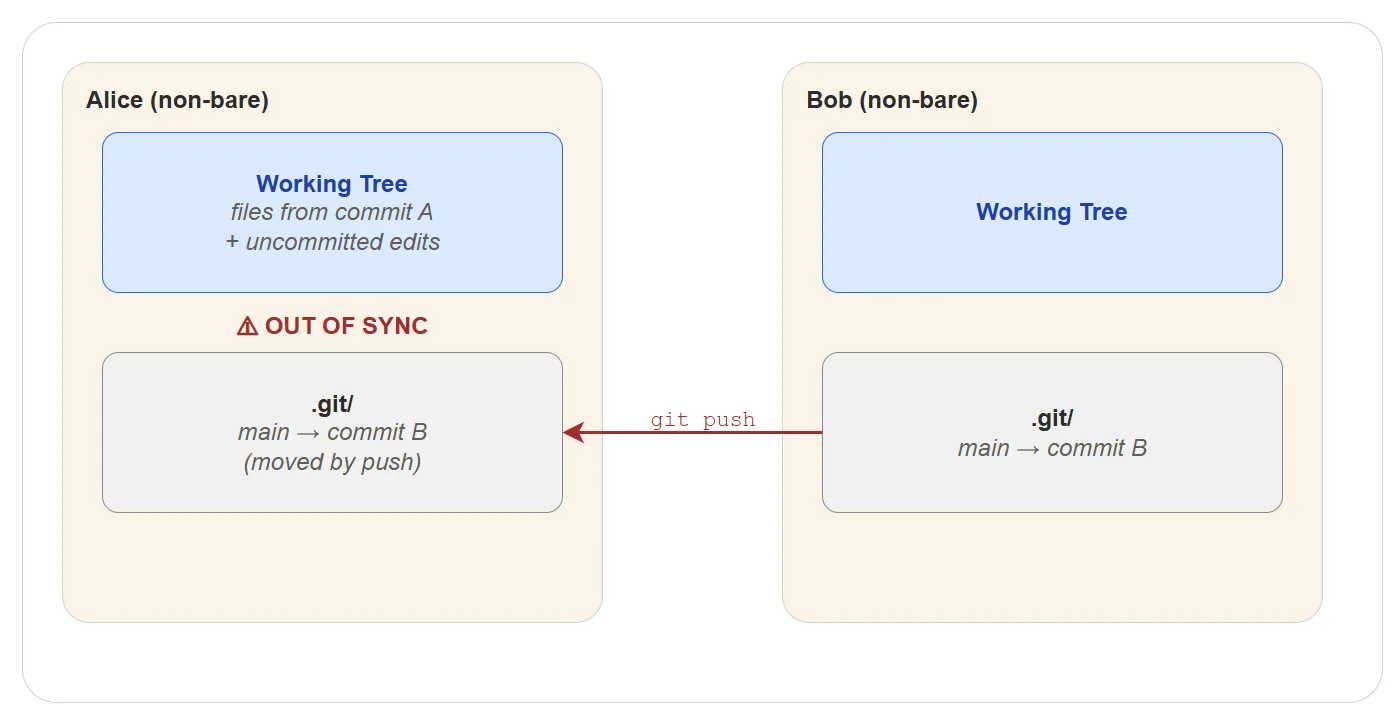
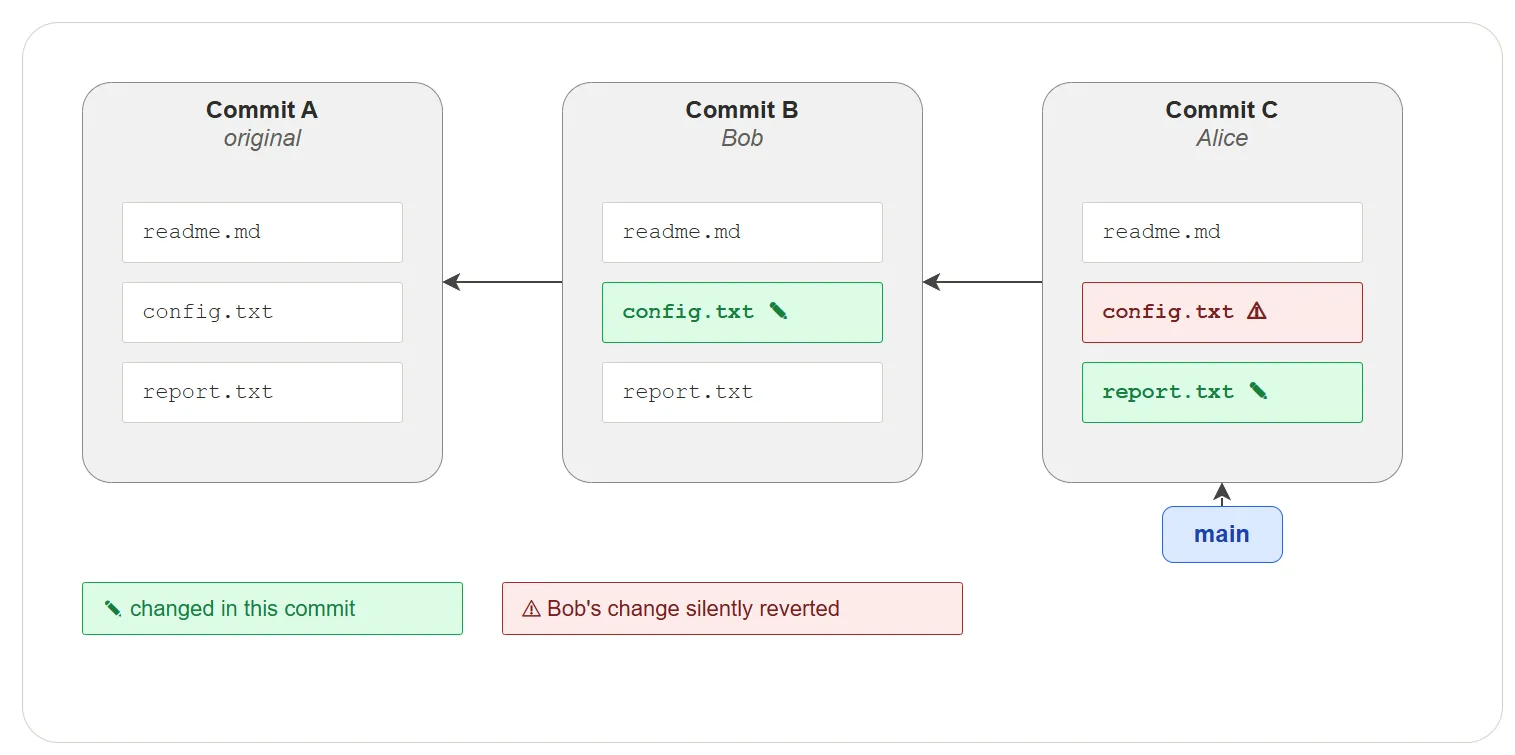
The problem: when Bob pushes his changes, Git updates the branch
inside Alice’s .git/ to point to Bob’s latest commit immediately.
But Alice’s working tree is not updated — her files still reflect
the old commit, plus whatever edits she has in progress. Alice’s
branch and her working tree are now out of sync. If she commits at
this point, she unknowingly reverts Bob’s changes without any
error or warning — because her files do not contain them.
What if the two developers never touch each other’s repositories directly? A popular solution to this kind of synchronization problem is to introduce an intermediary repository that both developers push to and pull from.
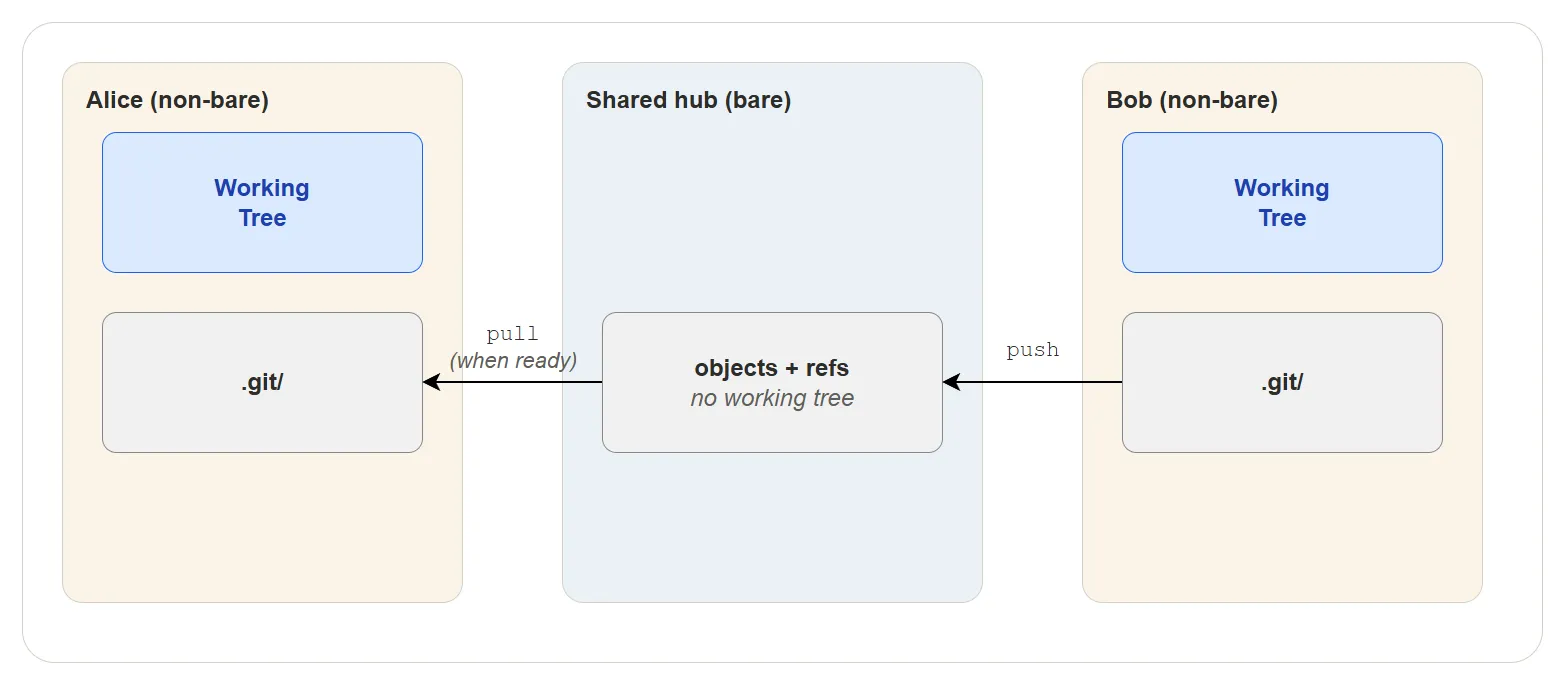
This is called a shared hub. The shared hub is a bare repository — it has no working tree, only the Git internals. Its purpose is to hold commits and references, not to be edited directly. Because nobody edits files in it, updating a branch is always safe.
With a bare repository in the middle, each developer works independently. Bob pushes his changes to the bare repository whenever he is ready. Alice commits her own work first, then pulls Bob’s changes from the bare repository when she is ready. No one reaches into anyone else’s working tree. This is exactly how hosting services like GitHub and GitLab work — every repository on the server is bare.
The core.bare flag
Git controls this with a configuration flag called core.bare, stored
inside the repository’s config file:
$ cat project.git/config
[core]
    repositoryformatversion = 0
    filemode = true
    bare = true
In a non-bare repository, bare = false — the default. Git checks
this flag when receiving a push: if it is false, the push is
rejected to protect the working tree. Only bare repositories have
bare = true, which tells Git there is no working tree and pushes
are safe to accept. The git init --bare command sets this flag
automatically.
Now, when Bob pushes to Alice’s repository, Git checks core.bare and
rejects the push because it is not a bare repository. This prevents
Alice from silently overwriting Bob’s changes on her next commit.
Bob must push to a shared hub (a bare repository) instead, and Alice must pull from it. This way, both developers have control over when they receive each other’s changes, and there are no surprises.
3. Object Model
Every time you commit, Git takes a snapshot — a complete picture of every tracked file in your project at that moment. A snapshot is not a list of what changed since the last commit; it is a full record of what every file looks like right now. If a file has not changed, Git does not store a new copy — it reuses the existing one. This makes snapshots efficient despite recording the entire project each time.
Git stores these snapshots — along with files, directories, and labels — as objects. There are four object types, and every object in Git is one of these:
| Type | Stores | Analogy |
|---|---|---|
| Blob | The contents of a single file | A page in a notebook |
| Tree | A directory listing (references to blobs and other trees) | A table of contents |
| Commit | A snapshot of the project (references a tree) + metadata | A dated entry in a logbook |
| Tag | A named label (references a commit) + metadata | A sticky note on a logbook entry |
Blob Object
A blob (binary large object) stores the contents of a single file — the actual text or binary data inside it. It contains only the raw data — no file name, no path, no permissions. Two files with identical content share the same blob, even if they have different names.
$ git cat-file -p b24d71e
# Git Tutorial

Welcome to the Git tutorial. This guide covers the fundamentals
of version control with Git.
A blob is created when you run git add. Git compresses the file
contents (makes them smaller for storage), computes a hash (a unique
identifier — explained below), and stores the result as an object.
Tree Object
A tree represents a directory (folder). It contains a list of entries, where each entry is a reference to either a blob (file) or another tree (subfolder), along with the file name and permissions (who is allowed to read, write, or execute the file).
$ git cat-file -p da8d6f3
100644 blob b24d71e...    .gitignore
040000 tree 6e4aac2...    src/
040000 tree 34d3238...    docs/
100644 blob 676b59c...    README.md
Each entry starts with a mode that encodes the file type and permissions:
| Mode | Meaning |
|---|---|
100644 | Regular file — most files you create will have this mode |
100755 | Executable file — a program or script that can be run directly |
040000 | Subdirectory — points to another tree object |
120000 | Symbolic link — a special file that contains a path to another file; opening it opens the target instead |
160000 | Submodule — a reference to a commit in another Git repository |
Together, the tree objects form a hierarchy that mirrors your project’s folder structure at a specific point in time.
Commit Object
A commit records a snapshot of the entire project at a specific moment. It references a single root tree (the top-level directory of the project) and stores metadata — extra information about the change: who made it (author), when (timestamp), and a short message describing why.
$ git cat-file -p 3a7ed53
tree      da8d6f364612a07419ba0baf35dced6b52948c4f
parent    1f8716a405a8c09ef92012e713d3c087ae0b2678
author    user <user@example.com> 1641905621 +0200
committer user <user@example.com> 1641905621 +0200

Add project documentation
Every commit (except the very first one) has a parent — the commit that came before it. This parent reference forms a chain that is the history of your project. Merge commits have two or more parents.
Tag Object (Labels)
A tag object points to a commit and records extra information: who
created the tag, when, and a message explaining what it represents.
Tags are used to mark important points in the project history, most
commonly release versions (e.g. v1.0, v2.0).
Because tag objects carry this extra information, they are called annotated tags — the annotation is the metadata that makes them more than just a name.
$ git cat-file -p v1.0
object  3a7ed539ea18da12d5707001d7a4c176f8911240
type    commit
tag     v1.0
tagger  user <user@example.com> 1641911532 +0200

First stable release
Unlike branches, tags do not move — they always point to the same
commit. Use annotated tags for anything you plan to share with others.
Tags are not pushed automatically — you must run
git push origin --tags or git push origin v1.0 explicitly.
Note: Git also supports lightweight tags, which are not objects. A lightweight tag is just a plain file in
.git/refs/tags/containing a commit hash — no author, no date, no message. They are quick to create but carry no information about who created them or why. Use lightweight tags for temporary local bookmarks only.
How Objects Relate
The diagram below shows how the four object types connect. A tag
points to a commit, a commit points to a root tree, and a tree
contains blobs (files) and other trees (subdirectories). All objects
are immutable and stored in .git/objects/.
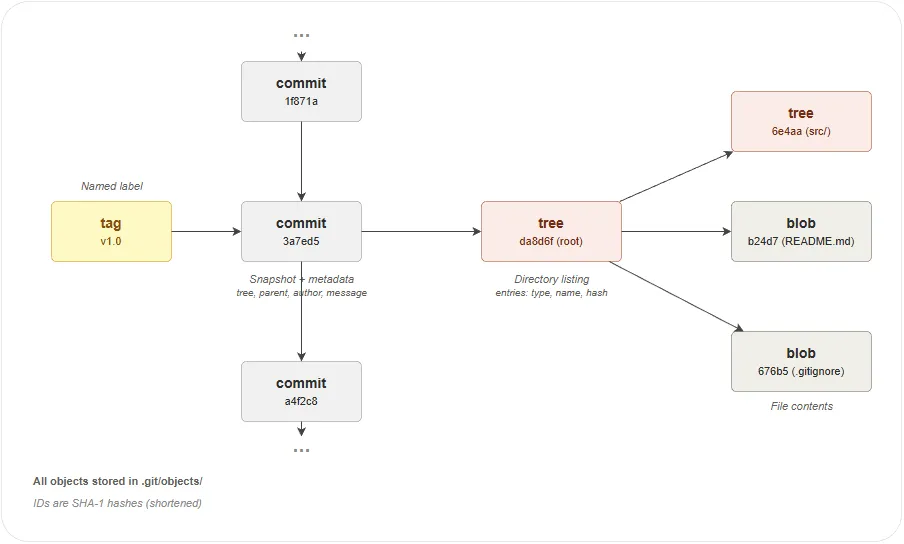
Here is a concrete example showing two commits with their trees and blobs. Each commit is a full snapshot — commit N has four files, commit M has two:
  tag "v1.0"
      │
      ▼
  commit N ──parent──▶ commit M ──▶ ...
      │                    │
      ▼                    ▼
  tree (root)          tree (root)
   ├── blob  README.md  ├── blob  README.md
   ├── tree  src/       └── blob  .gitignore
   │    └── blob  main.py
   └── blob  .gitignore
Following these references from any commit, Git can reconstruct the exact state of every file at that point in time.
How Objects Are Identified
Every object gets a unique 40-character identifier called a hash. Think of it like a fingerprint — just as no two people have the same fingerprint, no two different pieces of content produce the same hash.
Git computes the hash using an algorithm called SHA-1. The algorithm takes the object’s content as input and produces a fixed-length string of letters and numbers. The same content always produces the same hash. If even one character changes, the hash changes completely.
$ git log -1
commit db79ba36b521373fcfaff3c2e422326a59fe26f6 (HEAD -> main)
Author: Your Name <your.email@example.com>
Date:   Sun Jan 9 20:05:15 2022 +0200
The value db79ba36b521373fcfaff3c2e422326a59fe26f6 is the hash of this
commit object. In practice, you only need the first 7–8 characters
(e.g. db79ba3) — Git will resolve the full hash automatically.
How Objects Are Stored
Git stores objects as compressed files in .git/objects/. To avoid
putting thousands of files in a single folder, Git uses the first two
characters of the hash as a subfolder name and the remaining 38
characters as the file name.
For example, an object with the hash 3a7ed539ea18da12d5707001d7a4c176f8911240
is stored in a folder named 3a with a file named after the remaining
38 characters:
$ ls .git/objects/3a/

.git/objects/
│
├───3a/                                        ← first 2 characters of the hash
│       7ed539ea18da12d5707001d7a4c176f8911240  ← remaining 38 characters
│       f20b1c84e9a7d3561e0c42f890abcde1234567  ← another object starting with 3a
│       01cc9d8b7e6f5432a1b0c9d8e7f6a5b4c3d2e1  ← and another
│
├───info/
└───pack/
Every object whose hash starts with the same two characters ends up in
the same folder. Git splits objects across 256 possible folders (00
to ff) to keep each folder manageable.
As a repository grows further, Git compresses multiple objects into a
single file in the pack/ directory for efficiency.
Inspecting Objects
You will rarely need to inspect objects directly, but it is useful for
understanding how Git works under the hood or for debugging unexpected
behaviour. The git cat-file command lets you examine any object by
its hash (you only need the first 7–8 characters):
$ git cat-file -t 3a7ed53        # what type of object is this?
commit

$ git cat-file -s 3a7ed53        # how large is this object?
231

$ git cat-file -p 3a7ed53        # show the full content
tree      da8d6f364612a07419ba0baf35dced6b52948c4f
parent    1f8716a405a8c09ef92012e713d3c087ae0b2678
author    user <user@example.com> 1641905621 +0200
committer user <user@example.com> 1641905621 +0200

Add project documentation
| Flag | Shows | Example output |
|---|---|---|
-t | Object type | commit, tree, blob, or tag |
-s | Object size in bytes | 231 |
-p | Object content (pretty-print) | Depends on the type — see examples above |
4. Index (Staging Area)
The index is the area between your working tree and the repository. It holds a list of changes that are ready to be included in the next commit. In chapter 01 we called this the staging area — the index is the internal name for the same thing.
When you edit a file, the change exists only in your working tree. When
you run git add, Git copies the change into the index. When you run
git commit, Git takes everything in the index and saves it as a new
commit. This two-step process lets you choose exactly which changes to
include in each commit, even if you modified many files.
Working tree ──git add──▶ Index ──git commit──▶ Repository
What the Index Contains
Internally, the index is a binary file at .git/index. It stores a
sorted list of every tracked file with three pieces of information:
the file mode (type and permissions), the blob hash (which object holds
the file contents), and the file path.
You can inspect the index with git ls-files --stage:
$ git ls-files --stage
100644 63c918c667fa005ff12ad89437f2fdc80926e21c 0       .gitignore
100644 5529b198e8d14decbe4ad99db3f7fb632de0439d 0       src/main.py
Each line shows: <mode> <blob-hash> <stage-flag> <file-path>. The
stage flag is 0 during normal operation — it changes to 1, 2, or
3 only during a merge conflict (covered in
Branching and Merging).
Understanding the Mode Field
The mode is a six-digit octal number split into two groups:
100 644
─┬─ ─┬─
 │   └── permissions (644 = owner can read/write, others can read)
 └─────── file type   (100 = regular file)
The first three digits identify the type of entry:
| Type code | Meaning |
|---|---|
100 | Regular file — most files you create will have this type |
040 | Directory — points to another tree object |
120 | Symbolic link — a special file that contains a path to another file; opening it opens the target instead |
160 | Submodule — a reference to a commit in another Git repository |
The last three digits are the permissions, using the same octal notation as Unix file systems. Each digit represents a group of users (owner, group, others), and each digit is a sum of: read (4), write (2), and execute (1).
| Permission | Meaning |
|---|---|
644 | Owner can read and write; everyone else can only read |
755 | Owner can read, write, and execute; everyone else can read and execute |
So 100644 means “regular file, readable and writable by the owner”
and 100755 means “executable file, runnable by anyone.”
5. References
Every object in Git is identified by a 40-character hash, but humans
don’t think in hashes — we think in names like main, feature/login,
or v1.0. A reference (or ref) is a file that maps a
human-readable name to a commit hash. References are what make Git
usable.
Where References Live
References are stored as small text files inside .git/refs/, with one
exception — HEAD lives directly at .git/HEAD. Each reference file
contains a single commit hash:
.git/
│   HEAD                          # Points to the current branch (or commit)
│
└───refs/
    ├───heads/                    # Branch references
    │       main                  # Contains the hash of the latest commit on main
    │       feature/login         # Contains the hash of the latest commit on this branch
    │
    ├───remotes/                  # Remote-tracking references
    │   └───origin/
    │           main              # Last known position of origin/main
    │
    └───tags/                     # Tag references
            v1.0                  # Points to a tag object or directly to a commit
For example, reading the main branch reference shows the hash of the
commit at the tip of that branch:
$ cat .git/refs/heads/main
3002ad0adb4c6b24caea57b5f0e4be0b09de89af
HEAD — The Current Position
HEAD is a special reference stored at .git/HEAD. It tells Git which
branch or commit you are currently working on.
Attached HEAD — the normal state. HEAD points to a branch name, and that branch points to a commit. When you make a new commit, the branch moves forward and HEAD follows automatically:
$ cat .git/HEAD
ref: refs/heads/main
Detached HEAD — HEAD points directly to a commit instead of a branch. This happens when you check out a specific commit or tag. You can look around and make experimental changes, but any new commits will not belong to any branch and can be lost if you switch away:
$ git checkout 3002ad0
$ cat .git/HEAD
3002ad0adb4c6b24caea57b5f0e4be0b09de89af
Branches vs Tags
Both branches and tags are references — files containing a commit hash. The difference is how they behave:
| Branch | Tag | |
|---|---|---|
| Stored in | .git/refs/heads/ | .git/refs/tags/ |
| Moves? | Yes — advances to the new commit on each commit | No — always points to the same commit |
| Purpose | Track the latest work on a line of development | Mark a specific point in history (e.g. a release) |
Remote-Tracking References
When you run git fetch, Git downloads new commits from the remote
and updates the references in .git/refs/remotes/. These are
remote-tracking references — they record where each branch was on
the remote the last time you communicated with it.
$ cat .git/refs/remotes/origin/main
3002ad0adb4c6b24caea57b5f0e4be0b09de89af
If this hash matches your local refs/heads/main, the branches are in
sync. If they differ, one side has commits the other doesn’t.
6. History Navigation
Navigating history in Git means moving two things: HEAD (your current position) and branch tips (where each branch points). Different commands move one or both of these.
Creating a New Branch Tip
Creates a new branch pointing to a specific commit. HEAD does not move — you stay on your current branch.
When you need this:
- Starting work on a new feature or bug fix at the current commit
- Creating a branch from a past commit to fix a bug in an older release
  A ← B ← C  (main, HEAD)
       ↑      ↑
      fix   feature
A new branch can point to the current commit (feature at C) or to a
past commit (fix at B). HEAD does not move in either case.
$ git branch feature              # new branch at current HEAD
$ git branch fix abc1234          # new branch at a specific commit
You can also create and switch (moves HEAD) to the new branch in one step with
git switch -c:
$ git switch -c feature # create and switch to "feature" branch
Moving HEAD to Another Branch
The most common navigation. HEAD moves to the tip of a different branch. The branch tips do not move.
When you need this:
- Switching to a branch to continue working on it or test it
- Returning to
mainfrom a feature branch before starting a new task
before:   A ← B ← C  (main, HEAD)
                    ↖
                     D ← E  (feature)

after:    A ← B ← C  (main)
                    ↖
                     D ← E  (feature, HEAD)
$ git switch feature         # move HEAD to the "feature" branch tip
$ git switch main            # move HEAD back to "main"
Moving HEAD to a Specific Commit
HEAD detaches from its branch and moves directly to a commit. No branch tip moves.
When you need this:
- Inspecting what the project looked like at an older commit
- Testing whether a bug existed in a previous version
- Building or running a tagged release (e.g.
git switch --detach v1.0)
before:   A ← B ← C  (main, HEAD)

after:    A ← B ← C  (main)
               ↑
              HEAD  (detached)
$ git switch --detach abc1234 # detach HEAD and move it to commit abc1234
In this state, any new commits you make will not belong to any branch and can be lost when you switch away. To keep them, create a branch first.
Moving a Branch Tip Without Switching
Force-moves an existing branch to a different commit. HEAD does not move — you stay on your current branch. Only the target branch pointer is repositioned.
When you need this:
- Pointing a branch at a specific commit after a mistake
- Aligning a branch with another branch’s tip without merging
$ git branch -f feature abc1234 # move "feature" tip to commit abc1234
Warning: Force-moving a branch can make commits unreachable. If no other branch or tag points to the old commits, they will eventually be removed by Git’s garbage collection.
Moving HEAD and Branch Tip Forward
When you make a commit, the current branch tip moves forward automatically to point to the new commit. HEAD follows because it is attached to the branch. This is how branches grow — each commit advances the tip by one step.
When you need this:
- Every time you run
git commit— this is the normal way branches grow - When you
git mergeand Git creates a merge commit - When you
git pulland new commits are added to your branch
before commit:   A ← B ← C  (main, HEAD)
after commit:    A ← B ← C ← D  (main, HEAD)
Moving HEAD and Branch Tip Backward
Moves HEAD and the current branch tip together back to an earlier commit. This is how you undo commits. Depending on the mode, it can also update the index and working tree.
before:   A ← B ← C  (main, HEAD)

after:    A ← B  (main, HEAD)
                ↖
                 C  (orphaned — still points to B, but no branch points to C)
In all three modes, the branch tip and HEAD move back and commit C becomes orphaned. The difference is what happens to the changes that were in commit C — they can stay staged, become unstaged, or be discarded entirely:
| Mode | Index | Working tree | git status shows |
|---|---|---|---|
--soft | Unchanged | Unchanged | ”Changes to be committed” (staged) |
--mixed | Reset | Unchanged | ”Changes not staged for commit” (unstaged) |
--hard | Reset | Reset | Clean working tree — changes are gone |
--soft — the commit is undone but your changes look as if you had
just run git add and are ready to commit again. Useful when you want
to rewrite the commit message or combine several commits into one.
--mixed (default) — the commit is undone and the changes are
unstaged, as if you had edited the files but not yet run git add.
Useful when you want to restage changes selectively.
--hard — the commit is undone and the changes are discarded from
both the index and the working tree. Your files on disk are overwritten
to match the target commit.
$ git reset --soft HEAD~1    # move back 1 commit, keep changes staged
$ git reset --mixed HEAD~1   # move back 1 commit, unstage changes (default)
$ git reset --hard HEAD~1    # move back 1 commit, discard all changes
Warning:
--hardpermanently discards uncommitted work. Use with caution. Commit C still exists in the object database and can be recovered withgit refloguntil Git’s garbage collection removes it.
Exercises
Exercise 1: Create and Inspect a Repository
Task: Initialize a new Git repository and explore its internal structure.
Steps:
- Create a new directory called
concepts-laband navigate into it - Run
git initto create a repository - List the contents of the
.gitdirectory - Identify the
objects,refs/heads, andrefs/tagssubdirectories - Read the
HEADfile and note what it points to - Create a bare repository called
concepts-lab.gitin a sibling directory usinggit init --bare - Compare the directory structure of the bare repository with the
.gitfolder
Verify:
The .git directory exists and contains objects, refs, HEAD, and config. The bare repository has the same internal structure but no working tree.
Exercise 2: Explore Git Objects
Task: Create blobs, trees, and commits, then inspect them with plumbing commands.
Steps:
- In
concepts-lab, create a file calledhello.txtwith the contentHello, Git! - Stage the file with
git add hello.txt - Run
git ls-files --stageand note the blob hash next to the file name - Inspect the blob content using
git cat-file -p <blob-hash> - Inspect the blob type using
git cat-file -t <blob-hash> - Commit the file
- Run
git log --format=raw -1to see the commit object and note the tree hash - Inspect the tree using
git cat-file -p <tree-hash> - Verify that the tree references the same blob hash from step 3
- Browse the
.git/objectsdirectory and locate the two-character subdirectory matching the first two characters of the blob hash
Verify:
git cat-file -p on the blob prints Hello, Git!. The tree object lists the blob hash with mode 100644 and file name hello.txt. The corresponding object file exists on disk under .git/objects.
Exercise 3: Lightweight and Annotated Tags
Task: Create both tag types and compare how Git stores them internally.
Steps:
- In
concepts-lab, make sure you have at least one commit - Create a lightweight tag called
v0.1usinggit tag v0.1 - Create an annotated tag called
v1.0with the messageFirst releaseusinggit tag -a v1.0 -m "First release" - List all tags with
git tag - Read the lightweight tag reference file at
.git/refs/tags/v0.1and note the hash - Read the annotated tag reference file at
.git/refs/tags/v1.0and note the hash - Run
git cat-file -ton both hashes and compare the object types - Run
git cat-file -pon the annotated tag hash and inspect the tagger, date, message, and target reference
Verify:
The lightweight tag hash points directly to a commit object (git cat-file -t prints commit). The annotated tag hash points to a tag object (git cat-file -t prints tag), which in turn references the commit.
Exercise 4: Stage, Unstage, and Inspect the Index
Task: Use the index to selectively stage changes and observe its contents.
Steps:
- In
concepts-lab, create two files:tracked.txtandexperimental.txt - Stage only
tracked.txtwithgit add tracked.txt - Run
git ls-files --stageto see what is in the index - Run
git statusand note which file is staged and which is untracked - Now stage
experimental.txtwithgit add experimental.txt - Run
git ls-files --stageagain and confirm both entries appear - Remove
experimental.txtfrom the index without deleting the file usinggit rm --cached experimental.txt - Run
git ls-files --stagea final time and confirm onlytracked.txtremains - Commit the staged file
Verify:
After step 7, git ls-files --stage shows only tracked.txt. After the commit, git status shows experimental.txt as untracked and the working tree is otherwise clean.
Exercise 5: Explore References and HEAD
Task: Inspect how Git stores branch and tag references, and observe HEAD in attached and detached states.
Steps:
- In
concepts-lab, read the file.git/HEADand note what it contains - Read
.git/refs/heads/mainand confirm it contains a commit hash - Run
git log -1 --format=%Hand verify the hash matches the one in the file - Create a new branch called
testwithgit branch test - Confirm that
.git/refs/heads/testexists and contains the same hash - Switch to the
testbranch withgit switch test - Read
.git/HEADagain — it should now referencerefs/heads/test - Detach HEAD by running
git switch --detach HEAD~1 - Read
.git/HEAD— it should now contain a raw commit hash instead of a branch reference - Switch back to
mainwithgit switch main
Verify:
When attached, .git/HEAD contains ref: refs/heads/<branch>. When detached, it contains a 40-character commit hash. Both .git/refs/heads/main and .git/refs/heads/test exist as files containing commit hashes.
Exercise 6: History Navigation with Reset
Task: Practice the three reset modes and observe what each one preserves.
Steps:
- In
concepts-lab, create a filereset-test.txtwith the contentversion 1and commit it - Change the content to
version 2, stage, and commit - Change the content to
version 3, stage, and commit - Run
git log --onelineand note the three commit hashes - Run
git reset --soft HEAD~1— checkgit statusand read the file - Observe that
version 3is still in the file and the change is staged - Commit it again with the message
Re-add version 3 - Run
git reset --mixed HEAD~1— checkgit statusand read the file - Observe that
version 3is still in the file but the change is unstaged - Stage and commit it again with the message
Re-add version 3 again - Run
git reset --hard HEAD~1— checkgit statusand read the file - Observe that the file now contains
version 2— version 3 is gone - Use
git reflogto find the lost commit and restore it withgit reset --hard <hash>
Verify:
After the final recovery, reset-test.txt contains version 3 and git log --oneline shows the restored commit. The reflog shows all the reset operations.
Quiz
Q1. What is the difference between a bare and a non-bare repository?
- A) A bare repository has no branches
- B) A bare repository has no working tree — only the
.gitinternals - C) A non-bare repository cannot be pushed to
- D) A bare repository does not store commit history
Q2. Which Git object type stores the contents of a file?
- A) Commit
- B) Tree
- C) Blob
- D) Tag
Q3. What is the purpose of the index (staging area)?
- A) To store all commits in the repository
- B) To prepare and review changes before committing them
- C) To track the difference between two branches
- D) To keep a copy of the remote repository state
Q4. What does HEAD point to when it is “attached”?
- A) The root commit of the repository
- B) The most recent tag
- C) The tip of the current branch
- D) The remote tracking branch
Q5. What is a hash in Git?
- A) A password that protects a commit
- B) A unique 40-character identifier computed from an object’s content
- C) The name of a branch
- D) A compressed copy of a file
Q6. What happens when you run git reset --soft HEAD~1?
- A) The last commit is deleted and the changes are lost
- B) HEAD and the branch tip move back one commit; the changes remain staged
- C) The file is restored from the remote repository
- D) A new commit is created that reverses the previous one
Q7. In the mode 100644, what does 100 represent?
- A) The file size in bytes
- B) The file type (regular file)
- C) The number of links to the file
- D) The owner’s user ID
Answers
- B — A bare repository has no working tree — only the
.gitinternals - C — Blob
- B — To prepare and review changes before committing them
- C — The tip of the current branch
- B — A unique 40-character identifier computed from an object’s content
- B — HEAD and the branch tip move back one commit; the changes remain staged
- B — The file type (regular file)