Expert Topics
1. Overview
This chapter covers power-user topics — configuration layers, revision selectors, pathspec and refspec syntax, interactive rebase, bisect, hooks, and garbage collection. These concepts are not needed for daily Git use but become essential as projects and teams grow.
In this chapter you will learn:
- How Git’s layered configuration system works and how to customize it
- How to use revision selectors (tilde, caret, ranges) to navigate commit history
- How pathspec patterns filter files in Git commands
- How refspec syntax maps local and remote references
- How to rewrite commit history with interactive rebase
- How to find the commit that introduced a bug using bisect
- How to automate tasks with Git hooks
- How garbage collection and the reflog protect and clean up orphaned commits
- How packfiles compress objects for efficient storage and network transfer
2. Configuration
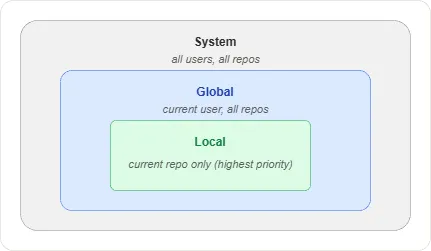
Git uses a layered configuration system. Settings at a more specific level override those at a broader level: local > global > system.
Configuration files
| Level | File | Scope | Flag |
|---|---|---|---|
| System | Git install dir (etc/gitconfig) | All users, all repos | --system |
| Global | ~/.gitconfig | Current user, all repos | --global |
| Local | .git/config | Current repo only | --local |
Edit any level with git config --<level> --edit. View all active
settings and their sources with git config --list --show-origin.
Common parameters
| Parameter | What it does | Example |
|---|---|---|
user.name | Author name on commits | git config --global user.name "Your Name" |
user.email | Author email on commits | git config --global user.email "you@example.com" |
init.defaultBranch | Default branch name for new repos | git config --global init.defaultBranch main |
core.autocrlf | Line ending conversion (set true on Windows, input on macOS/Linux) | git config --global core.autocrlf true |
core.editor | Editor for commit messages | git config --global core.editor "code --wait" |
pull.rebase | Use rebase instead of merge on git pull | git config --global pull.rebase true |
credential.helper | Cache credentials (avoid re-entering passwords) | git config --global credential.helper manager |
merge.tool | Default merge tool for conflict resolution | git config --global merge.tool meld |
Aliases
Aliases create shortcuts for long commands. Define them in the global config:
$ git config --global alias.st "status"
$ git config --global alias.co "checkout"
$ git config --global alias.hist "log --oneline --graph --all"
$ git config --global alias.unstage "restore --staged"
After setting these, git st runs git status, git hist shows the
full graph, etc.
Inspecting configuration
$ git config user.name                    # read a single value
$ git config --list                       # all active settings
$ git config --list --show-origin         # all settings with source file
$ git config --list --show-scope          # all settings with scope level
When the same parameter is set at multiple levels, the most specific wins: local overrides global, global overrides system.
3. Revision Selectors
Revision selectors let you reference specific commits without knowing
their hashes. They are used with git log, git diff, git show,
and any command that accepts a commit reference.
Ancestry selectors
~ (tilde)
The tilde moves back through first-parent history — a straight
line from the current commit. HEAD~3 means “three commits back
along the first parent.”
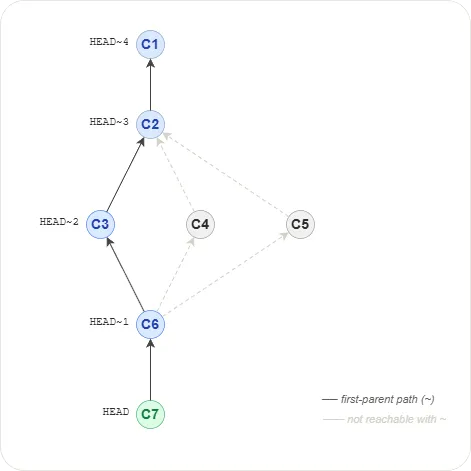
In the diagram, HEAD~1 is C6, HEAD~2 is C3, HEAD~3 is C2,
HEAD~4 is C1. Commits C4 and C5 (second and third parents of C6)
are not reachable with ~.
^ (caret)
The caret selects a specific parent of a merge commit. HEAD^1
is the first parent, HEAD^2 the second, HEAD^3 the third.
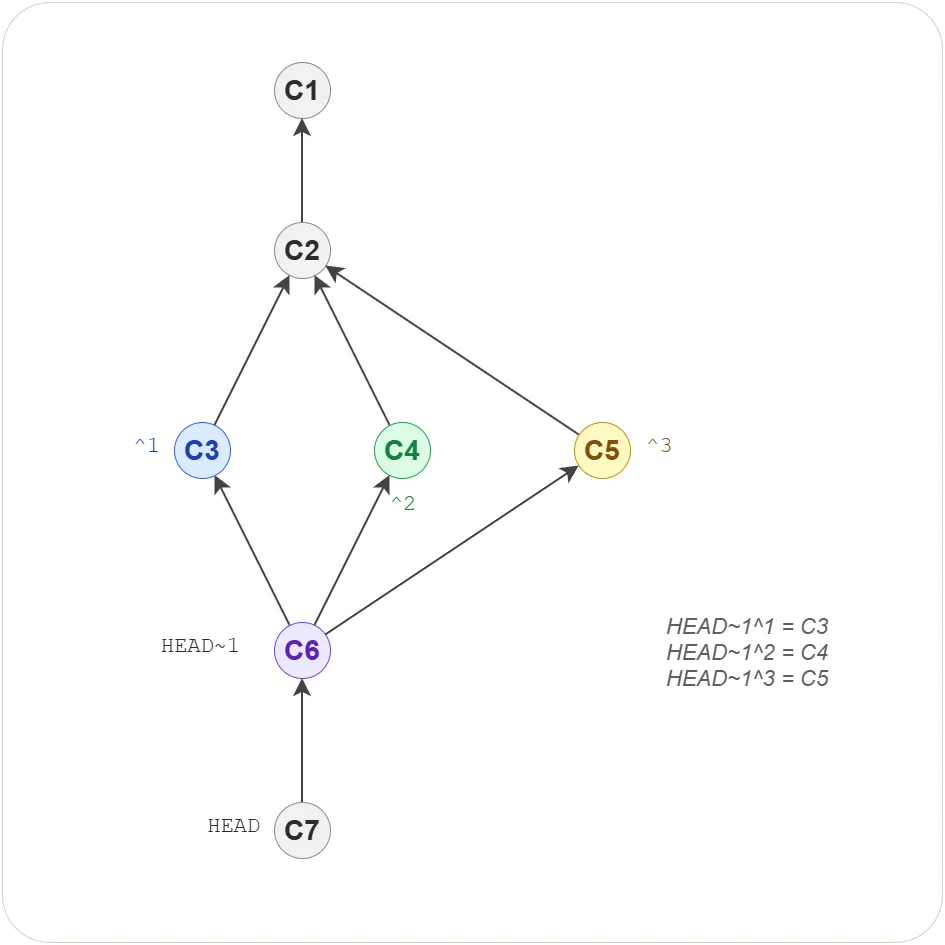
In the diagram, C6 has three parents: HEAD~1^1 is C3,
HEAD~1^2 is C4, HEAD~1^3 is C5. The two operators can be
combined to navigate any commit in the graph.
Range selectors
.. (double dot)
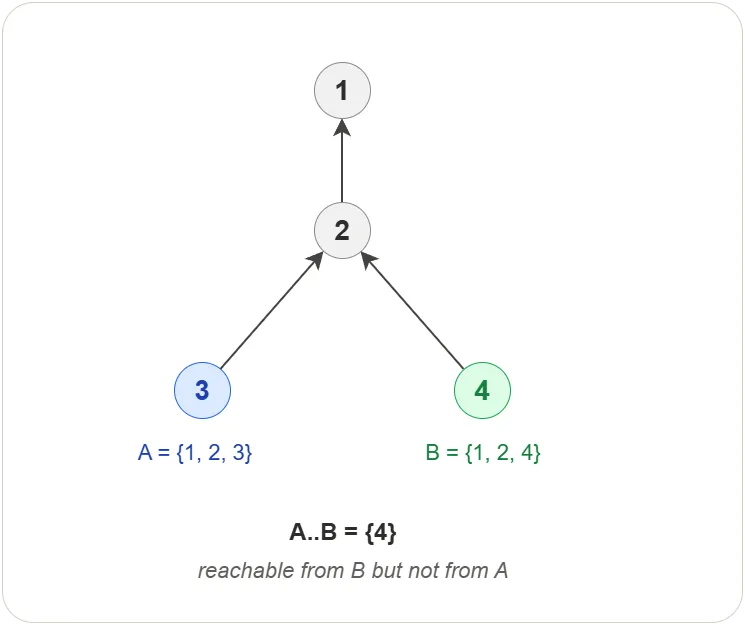
Shows commits reachable from B but not from A — the difference between two branches.
$ git log refA..refB # commits in B that A doesn't have
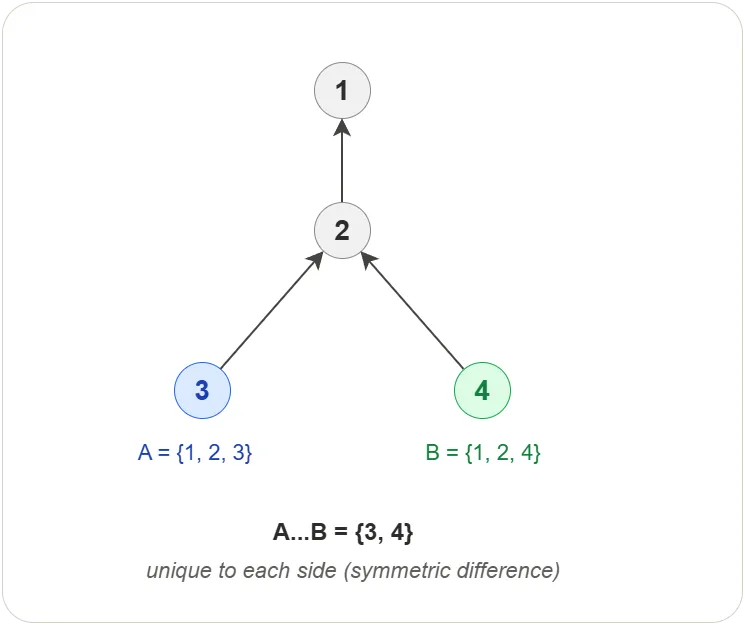
… (triple dot)
Shows commits unique to either side — the symmetric difference between two branches.
$ git log --left-right main...feature # marks each commit < (left) or > (right)
Reflog selectors
Git keeps a local log called the reflog that records every position
HEAD and branch tips have been in (see
Garbage Collection for details). The @{}
syntax lets you reference these previous positions:
$ git show "HEAD@{1}"              # previous position of HEAD
$ git show "HEAD@{yesterday}"      # where HEAD was yesterday
$ git show "main@{2.weeks.ago}"    # where main was 2 weeks ago
4. Pathspec
A pathspec is a pattern that matches files or directories. Most Git commands that work with files accept pathspecs.
Basic patterns
$ git add .                # current directory
$ git add src/             # a specific directory
$ git log '*.py'           # all Python files
$ git ls-files '*.mp[34]'  # mp3 and mp4 files
Wildcards
| Pattern | Matches |
|---|---|
* | Any number of characters |
? | A single character |
[abc] | One character from the set |
** | Matches across directories (with glob signature) |
Magic signatures
Signatures control the matching behavior. Syntax: :(signature)pattern
| Signature | Effect | Example |
|---|---|---|
top (or /) | Match from repo root, not current directory | ':/*.py' |
exclude (or !) | Remove paths from the result | ':!*.md' |
icase | Case-insensitive matching | ':(icase)*.jpg' |
literal | Treat wildcards as literal characters | ':(literal)Maybe?.mp3' |
glob | * stops at /, ** crosses directories | ':(glob)**/*.py' |
attr | Match by .gitattributes values | ':(attr:!debug)*' |
Signatures can be combined: ':(top,icase)*.mp?'
5. Refspec
When you run git fetch or git push, Git needs to know which
references on one side map to which references on the other. A refspec
defines this mapping.
Syntax
[+]<src>:<dst>
| Part | Meaning |
|---|---|
+ | Optional — force update even if not a fast-forward |
<src> | Source reference (on the remote for fetch, local for push) |
<dst> | Destination reference (local for fetch, remote for push) |
How Git uses refspecs
When you clone a repository, Git writes refspecs into .git/config:
[remote "origin"]
    url = https://github.com/user/project.git
    fetch = +refs/heads/*:refs/remotes/origin/*
This fetch refspec means: take every branch on the remote
(refs/heads/*) and store it locally as a remote-tracking branch
(refs/remotes/origin/*). The + allows non-fast-forward updates.
Refspec examples
$ git push origin main:refs/heads/main       # push main to remote main
$ git push origin main:refs/heads/staging     # push main as "staging" on remote
$ git push origin :refs/heads/feature         # delete remote branch (empty src)
$ git fetch origin main:refs/remotes/origin/main  # fetch one branch explicitly
6. Interactive Rebase
Interactive rebase lets you edit, reorder, squash, or drop commits before sharing them. It rewrites history — use it only on local (unpushed) commits.
$ git rebase -i HEAD~3 # edit the last 3 commits
Git opens your editor with a list of commits and an action for each:
pick abc1234 Add login page
pick def5678 Fix typo in login
pick 789abcd Add logout button
Actions
| Action | Effect |
|---|---|
pick | Keep the commit as-is |
reword | Keep the commit but edit the message |
squash | Merge into the previous commit, combine messages |
fixup | Merge into the previous commit, discard this message |
edit | Pause to amend the commit (files or message) |
drop | Delete the commit entirely |
reorder | Move lines up/down to change commit order |
Common workflows
Squash three commits into one before a PR:
pick abc1234 Add login page
squash def5678 Fix typo in login
squash 789abcd Polish login styles
Result: one commit with a combined message replacing all three.
Warning: Interactive rebase rewrites commit hashes. Never rebase commits that have already been pushed to a shared branch.
7. Git Bisect
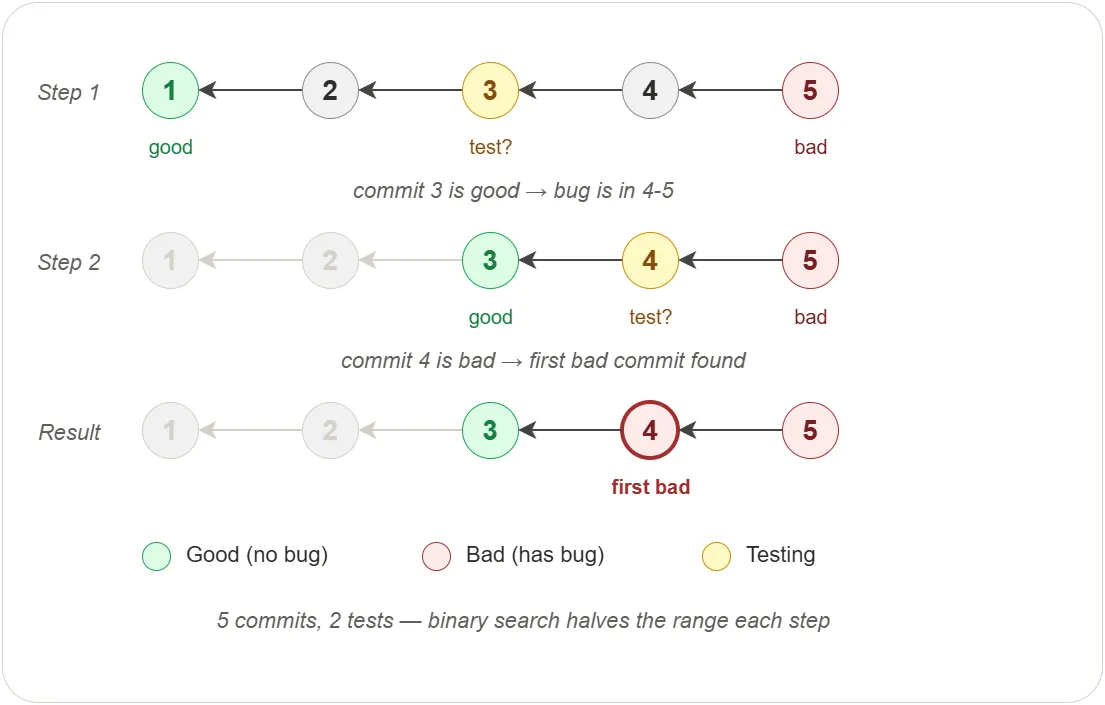
git bisect performs a binary search through commit history to find
the commit that introduced a bug. Instead of checking every commit,
it cuts the search space in half at each step.
Workflow
$ git bisect start
$ git bisect bad                 # current commit has the bug
$ git bisect good v1.0           # this older commit was working
# Git checks out a commit halfway between good and bad
# ... test it ...
$ git bisect good                # this commit works → bug is in the other half
# ... Git checks out another midpoint ...
$ git bisect bad                 # this commit has the bug
# ... repeat until Git identifies the first bad commit ...
$ git bisect reset               # return to the original branch
At each step, Git tells you how many commits remain to test. For a range of 1000 commits, bisect finds the culprit in about 10 steps.
Automated bisect
If you have a test script that exits 0 for good and non-zero for bad:
$ git bisect start HEAD v1.0
$ git bisect run ./test.sh
Git runs the script at each midpoint automatically and reports the first bad commit when done.
8. Hooks
Hooks are scripts that Git runs automatically before or after specific
events. They live in .git/hooks/ and are not tracked by Git (each
clone must set up its own hooks).
Common hooks
| Hook | When it runs | Typical use |
|---|---|---|
pre-commit | Before a commit is created | Lint, format, run fast tests |
commit-msg | After the message is entered | Enforce message format (e.g. ticket prefix) |
pre-push | Before push transfers data | Run test suite, prevent push to main |
post-merge | After a merge completes | Install dependencies, rebuild |
pre-rebase | Before rebase starts | Prevent rebasing shared branches |
Creating a hook
Create an executable file in .git/hooks/ with the hook name (no
extension on macOS/Linux):
#!/bin/sh
# .git/hooks/pre-commit
# Reject commits that contain TODO
if git diff --cached --name-only | xargs grep -l 'TODO' 2>/dev/null; then
    echo "Error: commit contains TODO — resolve before committing"
    exit 1
fi
$ chmod +x .git/hooks/pre-commit # make executable (macOS/Linux)
Sharing hooks
Since .git/hooks/ is not tracked, teams typically:
- Store hooks in a tracked directory (e.g.
scripts/hooks/) - Configure Git to use it:
git config core.hooksPath scripts/hooks - Or use a tool like Husky (Node.js) or pre-commit (Python) to manage hooks
Bypassing hooks
$ git commit --no-verify           # skip pre-commit and commit-msg hooks
$ git push --no-verify             # skip pre-push hook
Use sparingly — hooks exist for a reason.
9. Garbage Collection
When you reset, rebase, or delete a branch, the commits that were on it
don’t disappear immediately. They become orphaned — they still exist
in .git/objects/ but no branch or tag points to them. Git’s garbage
collector (git gc) is responsible for cleaning them up.
When does garbage collection run?
Git runs garbage collection automatically when the number of loose
objects in .git/objects/ exceeds a threshold (default: 6700,
configurable via gc.auto). You can also trigger it manually:
$ git gc                    # run garbage collection
$ git gc --aggressive       # more thorough, slower
How long are orphaned commits kept?
Orphaned commits are protected by the reflog — a local log of every position HEAD and branch tips have been in. As long as a commit appears in the reflog, garbage collection will not delete it.
By default, reflog entries expire after:
| Type | Default expiry |
|---|---|
| Reachable commits (still on a branch) | 90 days |
| Unreachable commits (orphaned) | 30 days |
This means you have 30 days to recover an orphaned commit using
git reflog before it becomes eligible for deletion.
Changing the defaults
$ git config gc.reflogExpire 120.days.ago             # reachable: 120 days
$ git config gc.reflogExpireUnreachable 60.days.ago    # orphaned: 60 days
Recovering an orphaned commit
Use the reflog to find the commit hash, then reset or create a branch:
$ git reflog                          # find the hash of the lost commit
$ git branch recovered abc1234        # create a branch pointing to it
Once a branch points to the commit again, it is no longer orphaned and will not be removed by garbage collection.
10. Packfiles
When you create a commit, Git stores each new blob, tree, and commit
as a separate file in .git/objects/. These are called loose
objects — one file per object, individually compressed with zlib.
This works well for small repositories, but as history grows, thousands
of small files waste disk space and slow down operations.
Git solves this with packfiles — a single binary file that bundles many objects together using delta compression.
Loose objects vs packfiles
# Loose objects — one file per object
.git/objects/
├── 3b/18e512dba79e...   # blob
├── 5f/a3c201af34d2...   # tree
├── a1/b2c3d4e5f678...   # commit
└── ...                   # thousands more
# After packing — two files replace thousands
.git/objects/pack/
├── pack-abc123.pack      # all objects, delta-compressed
└── pack-abc123.idx       # index for fast lookup
A .pack file contains the compressed object data. The .idx file
is an index that maps each object hash to its offset inside the pack,
so Git can find any object without scanning the entire file.
Delta compression
Packfiles do not just concatenate objects — they use delta compression. When two objects are similar (for example, two versions of the same file), Git stores one in full and the other as a set of differences (a delta) relative to the first. This is especially effective for files that change incrementally across commits.
$ git verify-pack -v .git/objects/pack/pack-abc123.idx
a1b2c3d4 blob   1200  450  120
f6e7d8c9 blob   80    65   570 1 a1b2c3d4
In this example, f6e7d8c9 is stored as a delta against a1b2c3d4.
Its original size is 80 bytes, but it takes only 65 bytes in the pack
because Git stores just the differences.
When does packing happen?
Git packs objects automatically during garbage collection:
$ git gc                   # packs loose objects, removes unreachable ones
$ git repack -a -d         # repack all objects, delete old packs
Packing also happens automatically when:
- The number of loose objects exceeds
gc.auto(default: 6700) - You run
git pushorgit fetch— Git builds a packfile specifically for network transfer
Packfiles and network transfer
When you push or fetch, Git does not send loose objects one at a time. It builds a thin packfile — a temporary pack that contains only the objects the other side is missing, delta-compressed against objects both sides already have. This makes network operations fast even for large repositories.
$ git push origin main
Enumerating objects: 5, done.
Counting objects: 100% (5/5), done.
Delta compression using up to 8 threads
Compressing objects: 100% (3/3), done.
Writing objects: 100% (3/3), 320 bytes | 320.00 KiB/s, done.
Total 3 (delta 1), reused 0 (delta 0), pack-reused 0
The “Delta compression” and “Compressing objects” lines show Git building the packfile for transfer.
Inspecting packfiles
# List all packs
$ ls .git/objects/pack/

# Show pack contents with sizes and deltas
$ git verify-pack -v .git/objects/pack/pack-abc123.idx

# Count loose vs packed objects
$ git count-objects -v
count: 12          # loose objects
packs: 1           # number of packfiles
size-pack: 4820    # total packed size in KiB
Exercises
All exercises use the concepts-lab repository from previous chapters.
Exercise 1: Configuration layers
Task: Set user identity at local and global levels and observe which one takes precedence.
Steps:
- Set a global user name and email using
git config --global - Set a different local user name and email using
git config --local - Run
git config --list --show-originto see all settings and their sources - Create a file, stage it, and commit
- Run
git log— check which identity appears in the commit - Remove the local overrides using
git config --local --unset user.nameandgit config --local --unset user.email - Make another commit and verify the global identity is now used
Verify:
The first commit shows the local identity. The second shows the global.
git config --list --show-origin marks which file each setting comes from.
Exercise 2: Navigate history with selectors
Task: Use tilde and caret operators to explore a merge commit’s ancestry.
Steps:
- In
concepts-lab, ensure you have at least one merge commit in history (from chapter 3 exercises) - Run
git log --oneline --graphand identify a merge commit - Run
git show HEAD~1— this is the first parent (one step back) - Run
git show HEAD~2— two steps back along the first parent - If you have a merge commit at HEAD~1, run
git show HEAD~1^2to see the second parent of that merge - Run
git log HEAD~3..HEAD --onelineto see the last 3 commits
Verify:
Each selector resolves to a specific commit. HEAD~1^2 shows a
different commit than HEAD~1^1 (or HEAD~1) when the commit is a
merge.
Exercise 3: Filter files with pathspec
Task: Use pathspec patterns to filter files in Git commands.
Steps:
- In
concepts-lab, create files:app.py,test_app.py,README.md,docs/guide.md - Stage and commit all files
- Run
git ls-files '*.py'— should show only Python files - Run
git ls-files '*.md'— should show only Markdown files - Run
git log --oneline -- '*.py'— history for Python files only - Run
git ls-files ':!*.md'— everything except Markdown files
Verify:
Each command filters to the expected file set. The -- '*.py' syntax
works with git log to show only commits that touched Python files.
Exercise 4: Squash commits with interactive rebase
Task: Combine multiple commits into one using interactive rebase.
Steps:
- In
concepts-lab, create three commits:echo "line 1" > squash.txt && git add squash.txt && git commit -m "Add squash file"echo "line 2" >> squash.txt && git add squash.txt && git commit -m "Add line 2"echo "line 3" >> squash.txt && git add squash.txt && git commit -m "Add line 3"
- Run
git log --oneline -5to see the three commits - Run
git rebase -i HEAD~3 - In the editor, change the second and third lines from
picktosquash - Save and close — Git opens a new editor for the combined message
- Write a single message like
Add squash file with 3 lines, save and close - Run
git log --oneline -3— the three commits are now one
Verify:
git log --oneline shows one commit instead of three. cat squash.txt
has all three lines. The commit hash is different from any of the originals.
Exercise 5: Find a bug with bisect
Task: Use git bisect to find which commit introduced a change.
Steps:
- In
concepts-lab, create 5 commits that each add a line toapp.txt:- Commits 1-3: add
feature A,feature B,feature C - Commit 4: add
BUG(this is the bad commit) - Commit 5: add
feature D
- Commits 1-3: add
- Run
git bisect start - Mark the current commit as bad:
git bisect bad - Mark the first commit as good:
git bisect good HEAD~5 - At each step, check if
app.txtcontainsBUG:- If yes:
git bisect bad - If no:
git bisect good
- If yes:
- Git reports the first bad commit
- Run
git bisect resetto return to the original branch
Verify:
Git identifies commit 4 (the one that added BUG) as the first bad
commit. git bisect reset returns you to main.
Exercise 6: Create a pre-commit hook
Task: Set up a hook that prevents committing files containing TODO.
Steps:
- In
concepts-lab, create.git/hooks/pre-commitwith this content:#!/bin/sh if git diff --cached | grep -q 'TODO'; then echo "Error: commit contains TODO" exit 1 fi - Make it executable:
chmod +x .git/hooks/pre-commit - Create a file
task.txtwith the contentTODO: finish this - Stage and try to commit — the hook should reject it
- Edit
task.txtto removeTODO, stage again, and commit - The commit should succeed
Verify:
The first commit attempt fails with “Error: commit contains TODO”. After removing TODO, the commit succeeds.
Exercise 7: Recover an orphaned commit
Task: Delete a branch, then recover it using the reflog.
Steps:
- Create and switch to
feature/recover, make a commit - Switch back to
main - Delete the branch:
git branch -D feature/recover - Run
git reflogand find the hash of the deleted branch’s commit - Create a new branch at that hash:
git branch recovered <hash> - Switch to
recoveredand verify the commit is intact
Verify:
git log --oneline on recovered shows the commit that was on the
deleted branch. The reflog entry matches the hash.
Quiz
Q1. What does HEAD~3 refer to?
- A) The third parent of a merge commit
- B) The commit three steps back following the first parent
- C) The third branch in the repository
- D) The third file in the commit
Q2. What does HEAD^2 refer to?
- A) Two commits back along the first parent
- B) The second parent of the current commit
- C) The second file in the commit
- D) The previous branch
Q3. What does the pathspec ':(icase)*.JPG' match?
- A) Only files named exactly
*.JPG - B) Files ending in
.jpg,.JPG,.Jpg, or any case variation - C) Only uppercase filenames
- D) Files in the
JPGdirectory
Q4. In a refspec +refs/heads/*:refs/remotes/origin/*, what does
the + mean?
- A) Add a new remote
- B) Force update even if not a fast-forward
- C) Only fetch new branches
- D) Push and pull at the same time
Q5. What does the squash action do in interactive rebase?
- A) Deletes the commit
- B) Merges the commit into the previous one, combining messages
- C) Moves the commit to a different branch
- D) Reverts the commit’s changes
Q6. How does git bisect find the commit that introduced a bug?
- A) It checks every commit from newest to oldest
- B) It performs a binary search, halving the range at each step
- C) It runs
git blameon every file - D) It compares the first and last commits only
Q7. Where do Git hooks live?
- A) In the repository root
- B) In
.git/hooks/ - C) In
~/.githooks/ - D) In the staging area
Q8. How long does Git keep orphaned commits before garbage collection removes them?
- A) They are deleted immediately
- B) 7 days
- C) 30 days (default reflog expiry for unreachable commits)
- D) Forever — they are never deleted
Answers
- B — The commit three steps back following the first parent
- B — The second parent of the current commit
- B — Files ending in
.jpg,.JPG,.Jpg, or any case variation - B — Force update even if not a fast-forward
- B — Merges the commit into the previous one, combining messages
- B — It performs a binary search, halving the range at each step
- B — In
.git/hooks/ - C — 30 days (default reflog expiry for unreachable commits)